Guides
How to Set Up WhatsApp Coexistence (Coex): Step-by-Step Guide
Connect your WhatsApp Business app number to the official API and a team inbox without giving up the app. Requirements, setup steps, history import and fixes.
Published: November 12, 2026· 9 min read
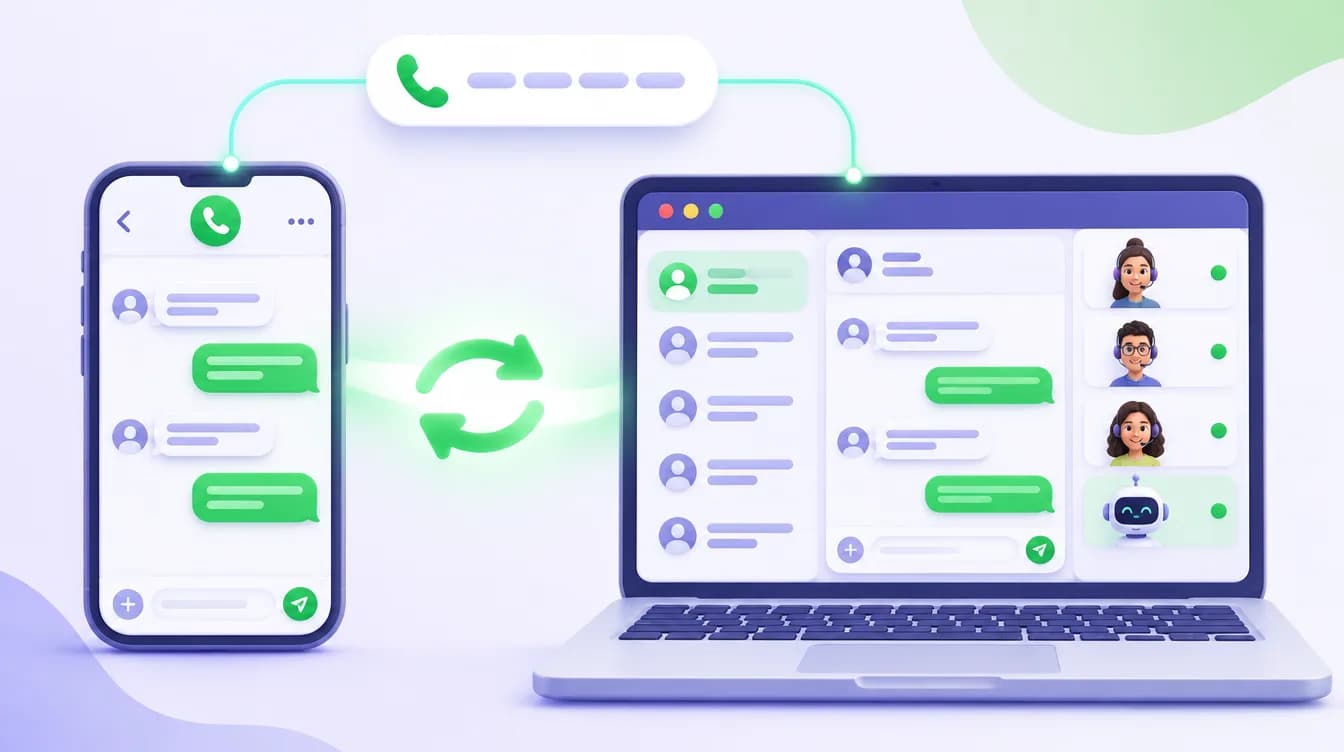
Your customers have messaged the same WhatsApp Business number for years, and you answer from your phone. As the messages pile up, one phone isn't enough: teammates need to see the conversations, and questions that arrive after hours shouldn't wait until morning. WhatsApp Coexistence (Coex) exists for exactly this. Without changing your number or giving up the app on your phone, you connect the same number to a team panel through Meta's official API.
This guide walks through a Coexistence setup in Chably step by step: what to check before you start, which screens you'll see, what happens in the first 24 hours and how to fix the most common problems. If Coexistence is new to you, start with What is WhatsApp Coexistence?
Short answer
To set up Coexistence, your number must be registered on an up-to-date WhatsApp Business app and your phone must be at hand. In Chably you go to WhatsApp → Connect number → App + Panel. In Meta's window you pick your business portfolio and scan a QR code from the app. The steps in the setup window take a few minutes. Your contacts and up to 6 months of chat history are then imported into the panel automatically.
Before you set up Coexistence: eligibility check
The first screen of the setup is a checklist. Chably's setup wizard asks you to tick these four items before you can continue:
- The number is used on the WhatsApp Business app on your phone (latest version). According to Meta's documentation, Coexistence needs app version 2.24.17 or later. A number on personal WhatsApp can't be connected this way.
- The WhatsApp Business account is at least 3 months old and in regular use. For a smooth setup, the wizard asks you not to start with a brand-new or long-unused account.
- No payment method is set up in the app. If you have ever added a payment method to the WhatsApp Business app, check it before you start.
- Your phone is at hand during setup. You'll scan a QR code from the app to confirm the connection.
If someone else holds the number
If the number lives on an employee's or your agency's phone, they need to complete the setup. The wizard can email the number owner a setup link that is valid for 48 hours; they don't need to log in to the panel.
What changes with Coexistence?
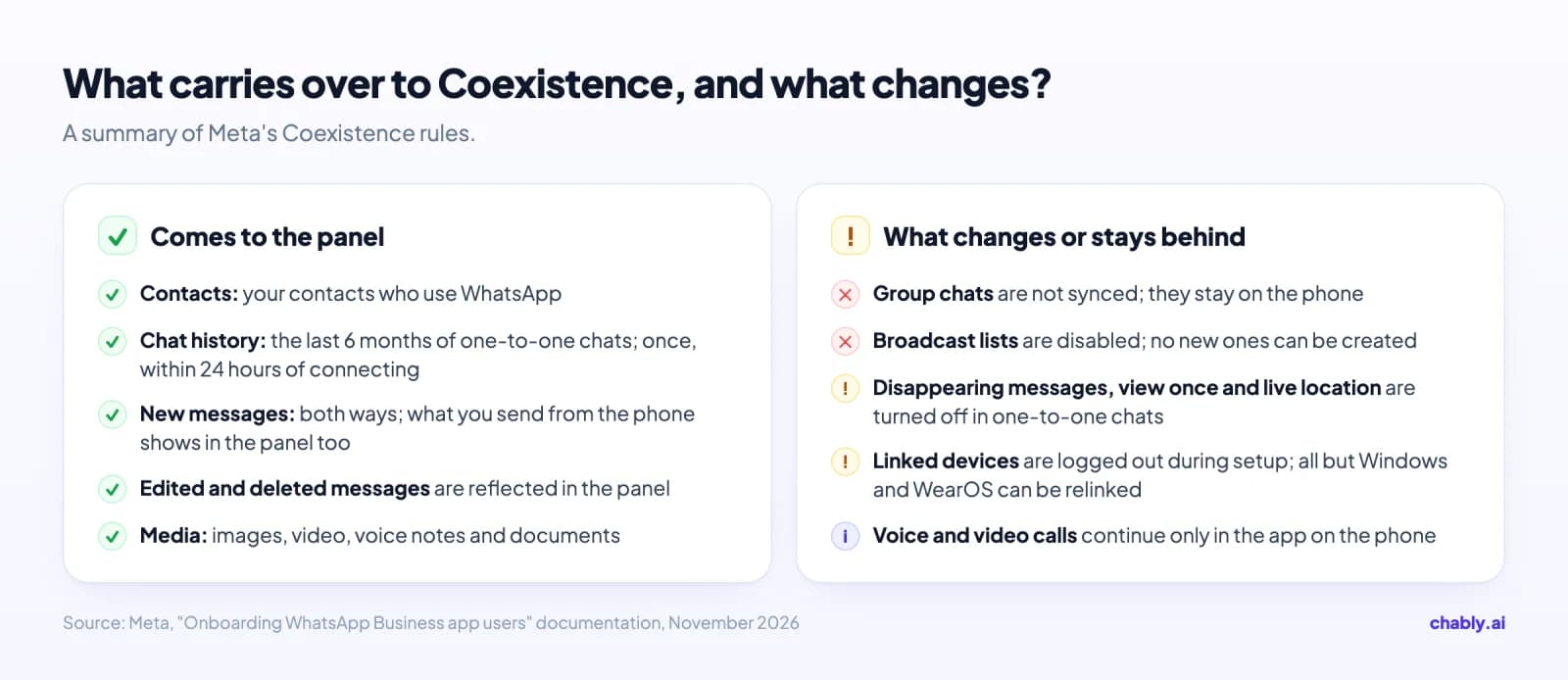
The wizard's second screen lists the rules you need to accept before you continue. They come from the limits Meta sets for Coexistence. To avoid surprises after setup, know these in advance:
| Area | After Coexistence |
|---|---|
| Throughput | Up to 20 messages per second. |
| Group chats | Not synced to the panel; you keep using your groups on the phone. |
| Voice and video calls | Can't be made from the panel; your calls continue in the app on the phone. |
| Phone usage | If you don't open the app on the phone for about two weeks, the connection drops. |
| Chat history | Imported only once, within 24 hours of connecting. |
| Linked devices | Companion devices such as WhatsApp Web and desktop are logged out during setup; you can relink them afterwards (except WhatsApp for Windows and WearOS). |
| Broadcast lists | Disabled; no new broadcast lists can be created. |
| Disappearing messages, view once, live location | Turned off in one-to-one chats. |
| Moving the account | This connection can't be moved to another WhatsApp Business account. |
If the number is also connected through WhatsApp QR in the panel
Setup logs out every linked device on the phone, including the same number's WhatsApp QR connection in Chably. Once Coexistence is connected, remove the QR connection from the panel; one number can't run on both channels at once.
Step by step: setting up WhatsApp Coexistence in Chably
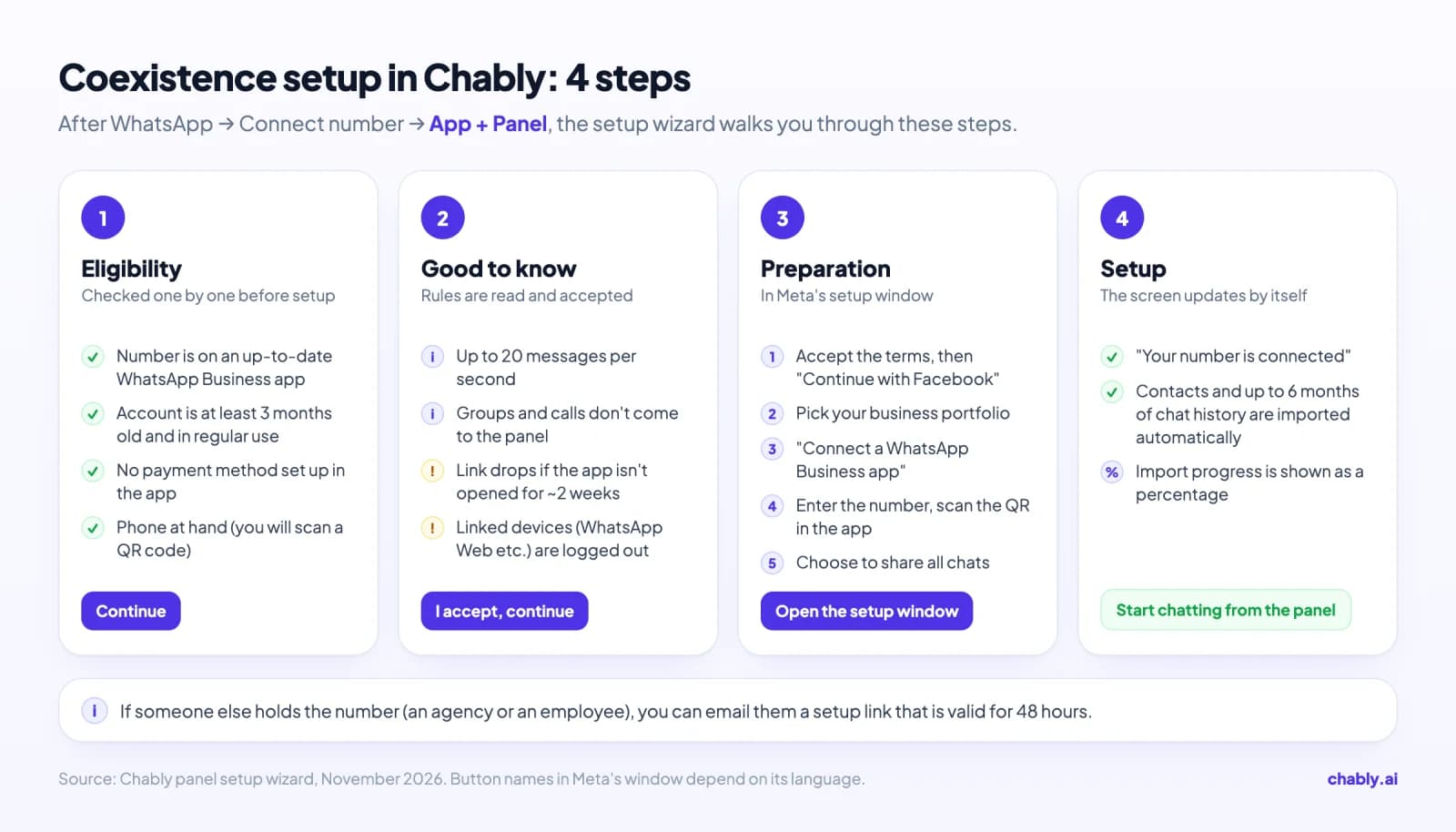
In the Chably panel, Coexistence is called the App + Panel connection. The setup wizard has four steps: Eligibility, Good to know, Preparation and Setup.
- Update the WhatsApp Business app on your phone and keep the phone with you.
- In the Chably sidebar, open WhatsApp → Connect number. You'll see three connection types: WhatsApp QR, WhatsApp API and App + Panel. Choose App + Panel.
- On the Eligibility screen, tick the four items and continue.
- On the Good to know screen, read the rules. Optionally enter a name for the number in the panel (for example "Sales line"), then accept and continue.
- The Preparation screen lists what you'll do in Meta's window. When you're ready, open the setup window.
- The window that opens says that Chably has asked you to set up your WhatsApp Business Account. Tick the Terms and Conditions box and click Continue with Facebook.
- In the Facebook window, pick your business portfolio. At the WhatsApp Business account step, choose Connect a WhatsApp Business app. Don't choose to create a new WhatsApp account.
- Enter your number. Follow the prompt in the WhatsApp Business app on your phone and scan the QR code on the screen.
- At the chat-sharing step, share all chats. Otherwise your past conversations won't come to the panel.
- The setup screen updates by itself and shows that your number is connected. You can now start chatting from the panel.
At the end, Meta's page may tell you to import your chats from the Account tab. You don't need to do anything; Chably starts the import itself.
The first 24 hours: importing contacts and chat history
As soon as your number is connected, Chably requests your contacts first and then your chat history. Under Meta's rules:
- Contacts: your contacts who use WhatsApp are imported into the panel, using the names saved on your phone.
- Chat history: up to the last 6 months of your one-to-one chats can be imported. Group chats are not.
- Timing: the import can only happen once, within 24 hours of connecting.
You can follow the import as a percentage on your number's page. You can close the page in the meantime; the import continues in the background. If the automatic start stalls for some reason, buttons to fetch contacts and history manually appear in the same place.
Imported messages don't trigger the AI
Imported history doesn't count as new messages. Your AI Agent and automations won't reply to old conversations; they only act on messages that arrive after you connect.
What to do after setup
A few settings right after connecting make sure you actually get value from Coexistence:
- Relink your devices. WhatsApp on your computer and WhatsApp Web were logged out during setup; relink them from the phone if you need them.
- Invite your team. Add teammates to the panel and use roles to decide which numbers' chats each of them can see. For example, the warehouse team only sees the warehouse line.
- Connect the AI Agent to the number. Choose whether the AI Agent replies on this number all the time or only after hours. For after hours you have three options: stay silent, send a ready-made info message, or reply once business hours start. See the AI Agent page for details.
- Prepare your templates. Once 24 hours have passed since the customer's last message, you can only send a Meta-approved template. You can create templates in the panel's settings and submit them for approval, or import the templates you already have on WhatsApp. The rule is explained in the WhatsApp 24-hour rule.
- Use the phone regularly. If the app on the phone isn't opened for about 14 days, Meta drops the connection. Chably emails you a warning if no message has been sent from the phone for 10 days.
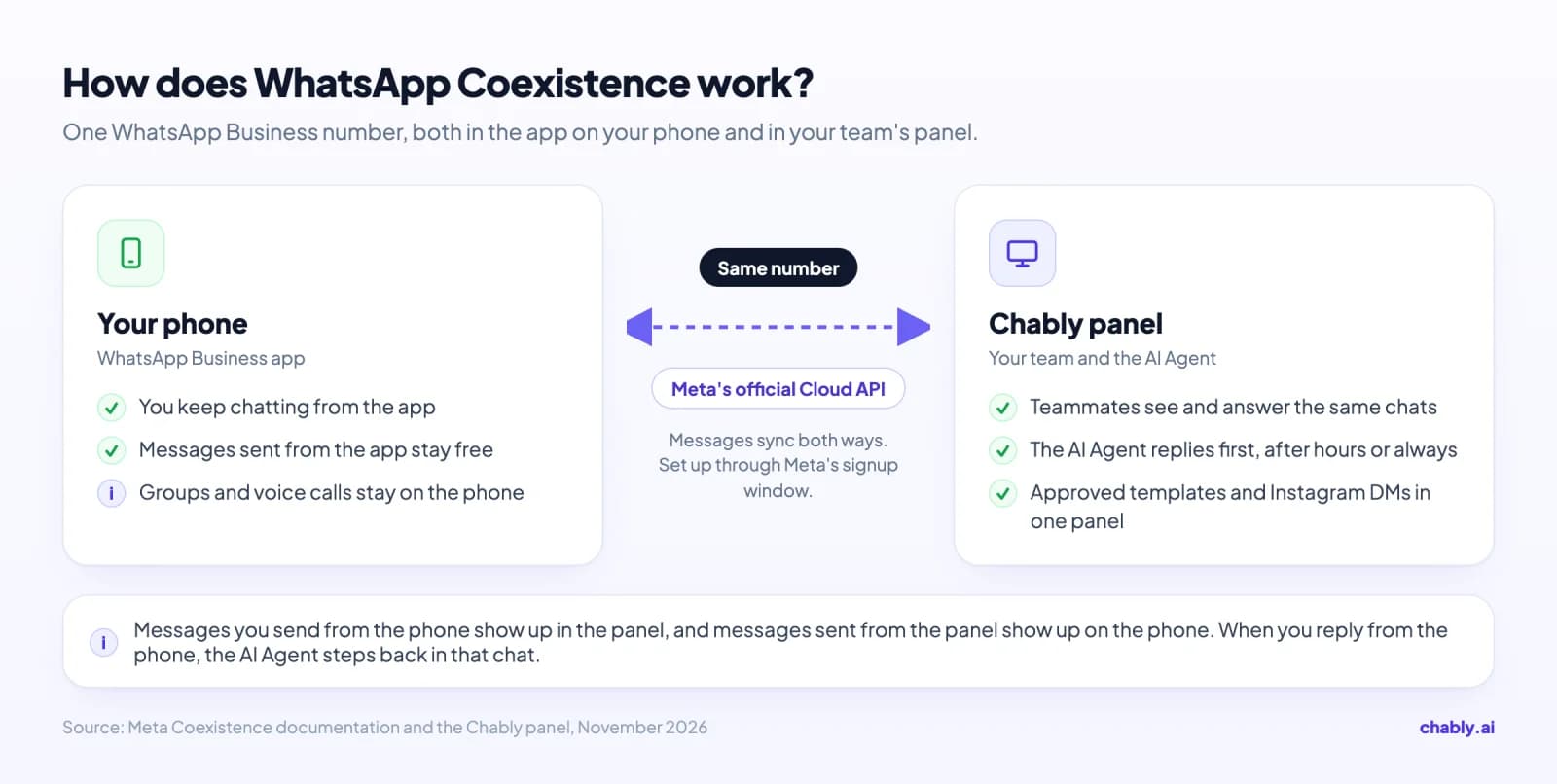
From then on, messages you send from the phone show up in the panel, and messages sent from the panel show up on the phone. When you reply to a chat from the phone or the panel, the AI Agent automatically steps back in that chat. To hand the chat back to the AI, use the button in the chat header. We cover this in AI-to-human handoff.
Common problems and fixes
| Problem | Fix |
|---|---|
| The setup window doesn't open | Your browser may have blocked the pop-up. Chably detects this and warns you; allow pop-ups for the panel and try again. |
| You opened the link inside Instagram or Facebook | Meta's window may not work in in-app browsers. Open the link in Chrome or Safari. |
| Past chats didn't come to the panel | "Share all chats" may not have been selected. In that case contacts are imported but history isn't. The import is limited to the 24 hours after connecting. |
| You can't select your number in Meta's window | Make sure the number is registered on the WhatsApp Business app, not personal WhatsApp, and that the app is up to date. |
| The connection dropped a few weeks later | The most common cause is not opening the app on the phone for a long time. When a connection drops, Chably shows the reason on the number's card and sends an email. You can run the setup again with Reconnect. |
The wizard's troubleshooting list covers most of these during setup. If you get stuck, contact us and we'll finish the setup together.
How is Coexistence priced?
According to Meta, messages you send from the WhatsApp Business app stay free. Messages sent from the panel through the API follow Cloud API pricing: Meta charges for delivered template messages by country and category, while free-form replies within 24 hours of the customer's last message are free on Meta's side. See WhatsApp Business API pricing for details.
For Chably's plans and current prices, see our pricing page.
Coexistence or another option?
Coexistence is the most practical official route for businesses that want to keep their number and keep chatting from the phone. If group chats are central to how you work, or you send very high volumes, a WhatsApp API (WABA) number that runs independently of any phone may fit better. We compare the options in QR vs Coex vs WABA, and cover every way to share one number with a team in How to use WhatsApp Business with multiple users.
As an official Meta Tech Provider, Chably sets up Coexistence through Meta's official signup flow. Your Coexistence number sits in the same shared inbox as your other WhatsApp numbers and your Instagram DM account. Read more on the WhatsApp integration page, or try Chably and finish the setup with your own number today.